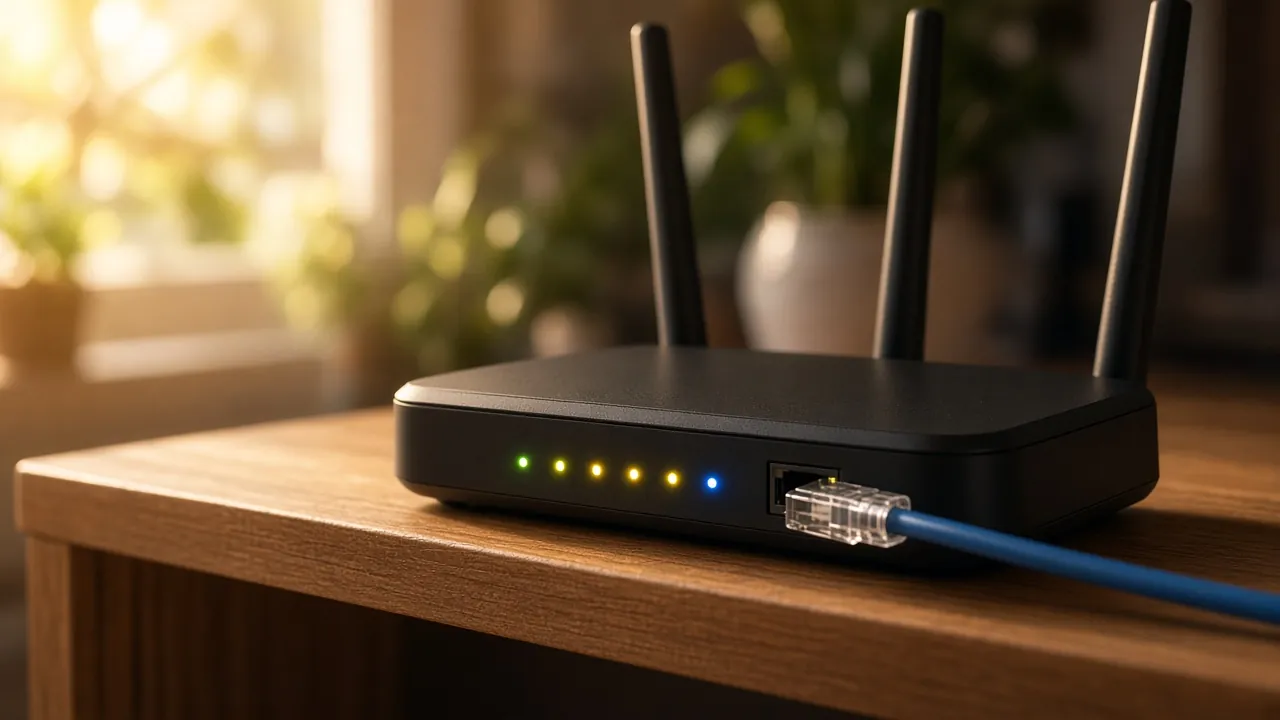
Are you experiencing frequent disconnections or slow speeds with your home Wi-Fi network? These issues can be frustrating, but they often have simple fixes. In this guide, we'll explore common connectivity problems and provide step-by-step solutions to improve your Wi-Fi performance. By the end of this article, you'll be equipped with the knowledge to resolve most network issues on your own.
Identifying these common issues and implementing the right fixes can significantly enhance your internet experience. To understanding Wi-Fi connectivity, diagnosing typical problems, and the steps to restore smooth and reliable connections across your devices.
Understanding Wi-Fi Connectivity
Wi-Fi connectivity is a fundamental aspect of modern home networking, relying on a router to transmit signals across various devices within your home. The quality of your Wi-Fi signal is significantly influenced by several factors. First, the distance from the router plays a important role; as you move further away, the signal strength typically decreases, which can lead to slower speeds and decreased reliability. Additionally, physical obstructions such as walls can impede the signal, making it essential to consider the placement of your router in relation to common barriers.
Interference from other electronic devices is another significant factor affecting Wi-Fi performance. Devices like microwaves, cordless phones, and even Bluetooth devices can disrupt the Wi-Fi signals, especially if they operate on similar frequencies. This interference can cause signal degradation, resulting in a less stable connection.
Understanding these factors is essential for troubleshooting and optimizing your home network. It is advisable to position your router in a central location within your home, away from large metal objects or thick walls that might obstruct the signal. Minimizing the number of devices that could cause interference can also help maintain a stable Wi-Fi connection, including disconnecting or turning off devices not currently in use and avoiding placing your router near common sources of interference.
Common Connectivity Issues
Common Connectivity Issues can manifest in various ways that affect the overall performance of your home Wi-Fi network. One prevalent issue is slow or intermittent connections, which often stem from outdated equipment or network congestion. When multiple devices are connected to the same network and performing data-intensive tasks such as streaming high-definition videos or downloading large files, this can lead to a decrease in speed for all connected devices (Source: Ofcom, Get help with broadband and Wi-Fi problems).
Dropped connections can also be a source of frustration. These may result from router malfunctions, faulty cables, or incorrect settings on the network. It is important to make sure your router and cables are in good condition and have not been damaged or compromised (Source: Prime Tech Support, Common Wi-Fi Problems and Solutions for Home Networks).
Interference from neighboring Wi-Fi networks can significantly degrade signal quality. This occurs when two networks operate on the same channel frequency, leading to slower speeds and reduced reliability. To mitigate this issue, you can change your router's channel or invest in a dual-band router that operates on different frequencies (Source: Netgear, Netgear Documentation).
It is essential to consider these common connectivity issues when troubleshooting your home network. By identifying the root cause, whether it be outdated equipment, improper settings, or interference, you can take appropriate measures to enhance your Wi-Fi performance and ensure a more reliable connection throughout your home.
Troubleshooting Steps
When encountering Wi-Fi connectivity issues at home, it's important to begin with simple yet effective troubleshooting steps before considering more complex solutions.
Firstly, start by rebooting your router. This process can resolve many temporary problems due to software glitches or minor hardware issues. Make sure you disconnect the power from the router and wait for about 30 seconds before reconnecting it. Additionally, if you have Wi-Fi boosters or mesh devices, it is advisable to restart them as well.
Next, check all your connected devices to ensure they are properly connected to the network. This includes verifying that your devices are within range of the Wi-Fi signal and that any necessary security protocols, such as WPA2 encryption, are enabled.
Before proceeding, consider whether there have been any recent changes in your network setup. If you've recently added new devices or changed the router's configuration, these changes could be contributing to the issue. In such cases, try reverting to the previous settings to see if that resolves the problem.
If you suspect interference is causing connectivity issues, changing the Wi-Fi channel on your router can help. Interference from other electronic devices or neighboring Wi-Fi networks can disrupt your signal. To change the channel, log in to your router's web interface and go to the wireless settings section. Select a less congested channel; often, channels 1, 6, or 11 are recommended for dual-band routers.
It's also worth noting that you should disconnect or turn off any devices not currently in use. This can help reduce network congestion and improve performance for devices that are active on the network.
Remember, these steps are part of a general troubleshooting process and may need to be adjusted based on the specific issues you're experiencing with your home network.
Router Placement and Equipment
Positioning your router strategically is important to maximize coverage and minimize dead zones within your home. Ideally, place the router in a central location to ensure an even distribution of signal strength across all rooms. This can help reduce the likelihood of connectivity issues. Additionally, consider using Wi-Fi extenders or mesh systems for larger homes where a single router may not provide adequate coverage. These devices can amplify the signal and extend your network's reach.
If you have a high-speed internet plan but still experience slow Wi-Fi speeds, it might not be solely due to your broadband line. The issue could stem from your router or device, distance from the router, physical obstructions like walls, or interference from other electronic devices. To address this, carefully evaluate the placement of your router and any obstacles that may impede the signal.
For enhanced performance, upgrading to a newer, more powerful router can be beneficial. Newer models often come with advanced features such as DOCSIS 3.1 technology, which supports multi-gig speeds up to 2 Gbps. This upgrade improves your internet speed and ensures compatibility with faster plans in the future without requiring additional hardware.
Remember that router placement is just one aspect of home network optimization. It's important to regularly check for software updates on your router and devices, as well as to manage connected devices to prevent overloading your network. For more full support, NETGEAR ProSupport for Home offers paid subscription services with 24/7 technical assistance, which can be a valuable resource in maintaining a solid Wi-Fi network.
Device-Specific Issues
Device-specific issues can significantly impact Wi-Fi performance in your home network. One common problem arises from outdated devices that may not support the latest Wi-Fi standards, such as 802.11ac or 802.11ax (Wi-Fi 5 and Wi-Fi 6). These older devices can struggle to maintain a stable connection with modern routers, leading to connectivity issues. For instance, if your smartphone is only compatible with Wi-Fi 4 (802.11n), it may experience slower speeds and intermittent disconnections when connected to a Wi-Fi 6 router.
To optimize performance, make sure your device's firmware is up-to-date. Manufacturers often release updates that improve compatibility with newer Wi-Fi standards and resolve known issues. For example, the NETGEAR ProSupport for Home service provides customers with access to tech support to assist with firmware updates and troubleshooting (NETGEAR Support).
Additionally, certain devices may have specific settings that can enhance Wi-Fi reception. For instance, you might find options in your device's settings to adjust the Wi-Fi channel or enable dual-band connectivity. These adjustments can improve signal strength and stability. It is also advisable to check if any of your devices are causing excessive network traffic, which could slow down the entire network. Devices such as desktop computers that require large downloads should be connected using an Ethernet cable instead of Wi-Fi.
Regularly reviewing your device settings and ensuring that all firmware is current can help maintain a reliable and high-performing home network.
Professional Support
Professional Support:
If you have diligently followed all the troubleshooting steps outlined in this guide and still encounter persistent home network connectivity issues, it may be time to seek professional support. Professional technicians can offer expertise that goes beyond basic troubleshooting and can identify complex problems that might not be apparent to an untrained eye.
NETGEAR ProSupport for Home is one such service that provides full technical assistance, available 24/7. This paid subscription service complements your NETGEAR home products by offering a limited hardware warranty and one year of complimentary 24/7 technical support. Should you wish to continue this support after the initial year, you can purchase a ProSupport Support Only contract. This option covers up to three devices or systems registered to your NETGEAR account, ensuring that any connectivity issues are addressed promptly.
In cases where the issue is not related to your home network equipment, it may be prudent to check with your Internet Service Provider (ISP). If the problem persists at home, your ISP can help diagnose whether there are issues with your broadband service or if the fault lies on their end. According to Ofcom's guidelines, a slow Wi-Fi test does not always indicate a fault with your broadband line; it could be affected by factors such as your router, device compatibility, distance from the router, and signal interference.
Before contacting a professional or your ISP, make sure you have documented all the steps you've already taken. This documentation can help the professional understand the situation more quickly and provide accurate solutions. If you continue to experience difficulties after following these guidelines, it is advisable to reach out to a professional service provider for further assistance.
Checklist for Wi-Fi Troubleshooting
To effectively troubleshoot and resolve common home network connectivity issues, follow this checklist:
- Reboot the Router and Connected Devices: Start with rebooting your router and any connected devices. This process can clear temporary software glitches and restore connection stability. Power cycle both the router and each device by turning them off, waiting a few seconds, and then turning them back on.
- Secure All Cables: Check that all cables are securely connected to their respective ports. This includes Ethernet cables for wired connections and power cables for routers and modems. Loose or damaged cables can lead to connection issues.
- Review Network Settings and Equipment Changes: Reflect on any recent changes in your network, such as adding new devices, changing Wi-Fi channels, or updating firmware. If you made changes just before experiencing connectivity problems, consider reverting these adjustments.
- Enable and Configure Device Wi-Fi: Verify that your device's Wi-Fi is turned on and configured correctly. This might involve checking the Wi-Fi settings on your smartphone or laptop to ensure it is connected to the correct network and has the appropriate security settings enabled.
- Test with a Different Device: If possible, test the connection using a different device. This can help determine if the issue is device-specific. For instance, if an old smartphone connects successfully while your new gaming console cannot, the problem might be related to the gaming console or its compatibility with the network.
Your next steps
Checklist for Wi-Fi Troubleshooting
- 1. Check Connections: Ensure all cables are properly connected and not damaged. Replace any faulty cables with standard Ethernet cables.
- 2. Update Firmware: Regularly update your router's firmware to the latest version for optimal performance. Refer to the manufacturer’s website or user manual for instructions.
- 3. Optimize Router Placement: Position the router in a central location away from obstructions, and at an elevated point if possible.
- 4. Adjust Settings: Modify your Wi-Fi settings to reduce interference, such as changing the channel or updating security protocols.
- 5. Restart Router: Occasionally restarting the router can resolve temporary connectivity issues. Follow the manufacturer’s instructions for proper shutdown and startup procedures.
To further enhance your home network performance, consider using a Wi-Fi range extender if you have dead zones. Additionally, make sure all devices connected to your network are running updated software, as outdated firmware can cause compatibility issues. If these steps do not resolve the problem, consult the official support channels of your router manufacturer or seek professional assistance.
Frequently asked questions
What should you know about Understanding Wi-Fi Connectivity?
Wi-Fi connectivity is a fundamental aspect of modern home networking, relying on a router to transmit signals across various devices within your home. The quality of your Wi-Fi signal is significantly influenced by several factors.
What should you know about Common Connectivity Issues?
Common Connectivity Issues can manifest in various ways that affect the overall performance of your home Wi-Fi network. One prevalent issue is slow or intermittent connections, which often stem from outdated equipment or network congestion.
What should you know about Troubleshooting Steps?
When encountering Wi-Fi connectivity issues at home, it's important to begin with simple yet effective troubleshooting steps before considering more complex solutions.
What should you know about Router Placement and Equipment?
Positioning your router strategically is important to maximize coverage and minimize dead zones within your home. Ideally, place the router in a central location to ensure an even distribution of signal strength across all rooms.
Sources
- www.ofcom.org.uk/phones-and-broadband/service-quality/broadband-wifi-help
- primetechsupport.com/blogs/wifi-solutions/common-wifi-problems-home
- www.netgear.com/home/wifi/modems/docsis31
- kb.netgear.com/000060596/What-is-NETGEAR-ProSupport-for-Home
Facts, prices and links checked on 20 October 2026. Prices and features change, so confirm on the official pages before you decide.